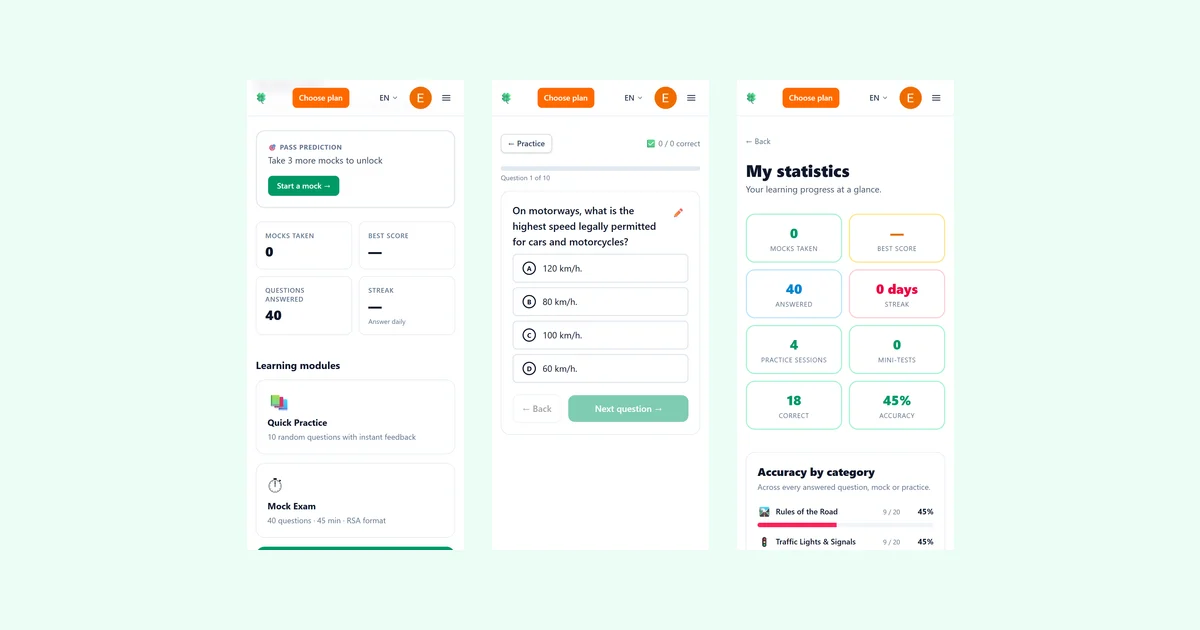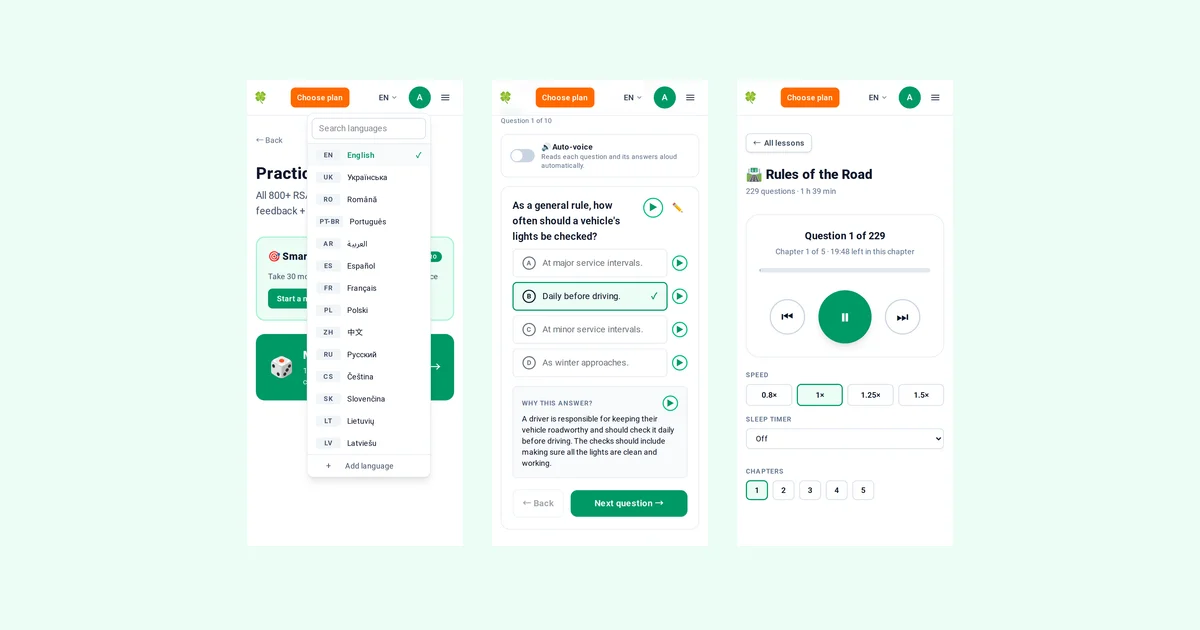
We have added four new site languages and three new ways to learn by listening. The full site is now available in Czech, Slovak, Lithuanian and Latvian, and Pro members get voiceover on practice questions, an auto-voice mode that reads everything aloud, and a new page of audio lessons. This update is for anyone who learns better by ear, finds reading on a screen tiring, or wants to turn a walk or a car journey as a passenger into revision for the Irish driver theory test.
Quick takeaways
- Four new languages: Czech, Slovak, Lithuanian and Latvian, each with the full interface, all 851 questions and voiceover.
- Voiceover (Pro): play buttons next to questions, answers and explanations.
- Auto-voice (Pro): the site reads each question and its answers aloud automatically.
- Audio lessons (Pro): topic-by-topic listening, about 4 hours 20 minutes in English.
- Smart practice fix (Pro): sessions now always match the length you pick.
Four new languages: Czech, Slovak, Lithuanian and Latvian
The site is now available in 14 languages: English, Ukrainian, Romanian, Portuguese (Brazil), Arabic, Spanish, French, Polish, Chinese, Russian, Czech, Slovak, Lithuanian and Latvian. Each language has the full interface, all 851 practice questions with their explanations, and voiceover in that language.
There is no separate voice-language setting. The voiceover always follows the site language, so if you switch the site to Latvian, you hear Latvian.
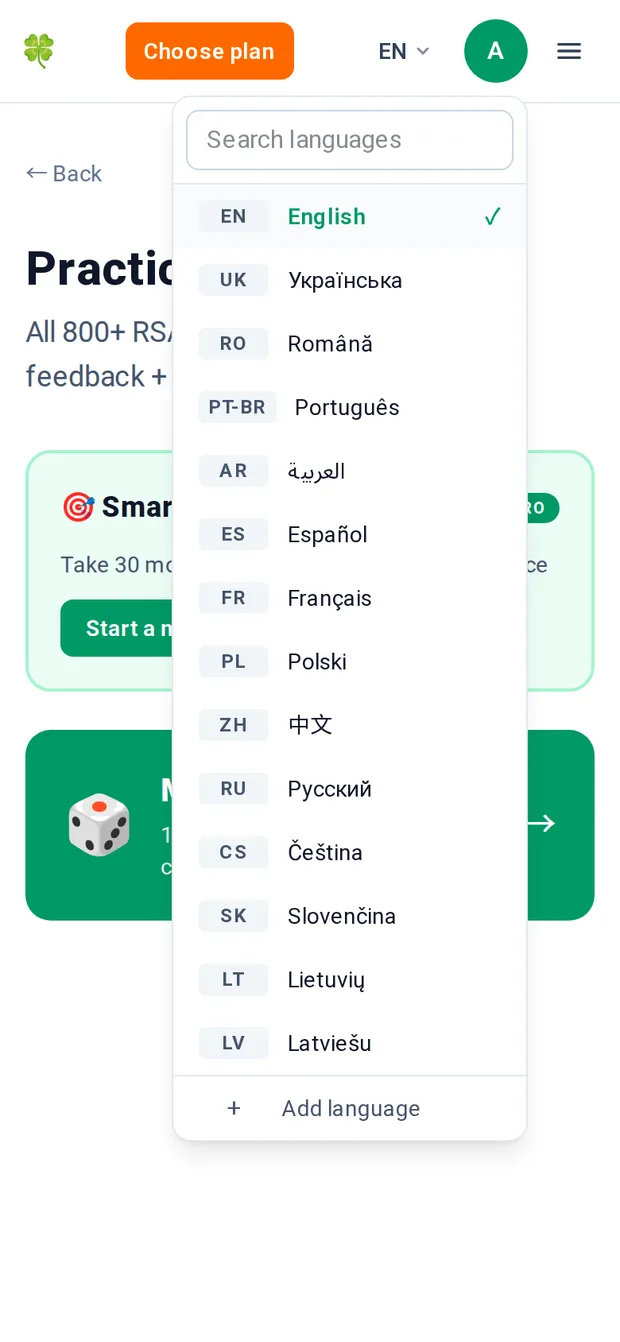
Tap the language code
At the top of any page you will see the current language code, for example "EN". Tap it to open the language list.
Search or scroll
Every language is written in its own name: Čeština, Slovenčina, Lietuvių, Latviešu and so on. Type the first letters in the search box to filter the list, or just scroll.
Tap a language
The page switches immediately and the choice is remembered for your next visit.
Missing your language?
The last line of the list is "Add language". Tap it to ask for a language we do not offer yet.
Voiceover of questions, answers and explanations (Pro)
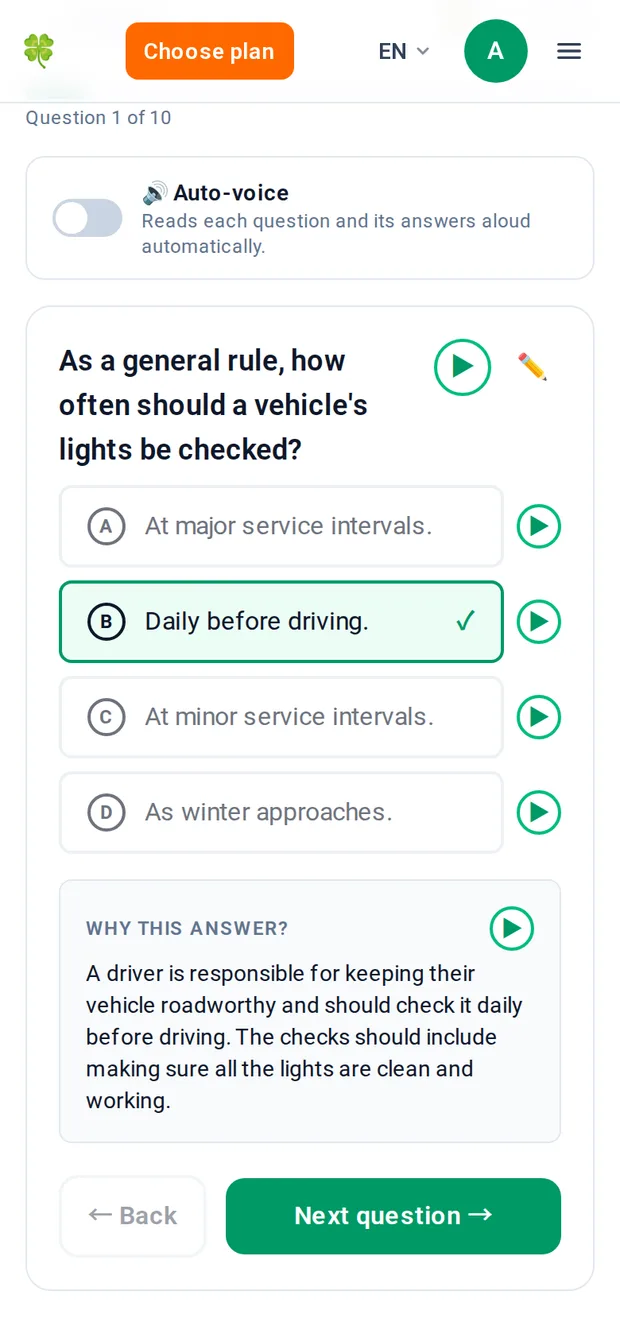
Voiceover reads individual parts of a practice question aloud in the site language. A round play button (▶) sits next to the question text, next to each answer option (A–D), and next to the "Why this answer?" explanation that appears after you answer.
It is part of Pro, and the free trial includes it too. Without Pro the buttons are shown greyed out with a Pro mark and the line "Voiceover is part of Pro", and nothing plays.
Open any practice question
Voiceover works in Practice (Mixed practice, Smart practice, practice by topic, All questions), the mini-tests in Learning modules, Bookmarks, and the review screen after a mock exam.
Tap a play button
Tap ▶ next to the question, an answer option or the explanation to hear that part read aloud in the site language.
Move on when you are ready
Tapping another play button or moving to the next question stops what is currently playing.
Auto-voice (Pro): hands-free reading
Auto-voice reads a whole question sequence aloud without you tapping each part. A switch called "Auto-voice" sits above the question card in Practice and in Learning-module mini-tests, with the line "Reads each question and its answers aloud automatically".
Turn it on and, on every question, the site reads the question, then each answer option with its letter ("A … B … C … D …"). After you answer it says "Correct" or "Incorrect" and reads the explanation. Then move on to the next question and it starts again.
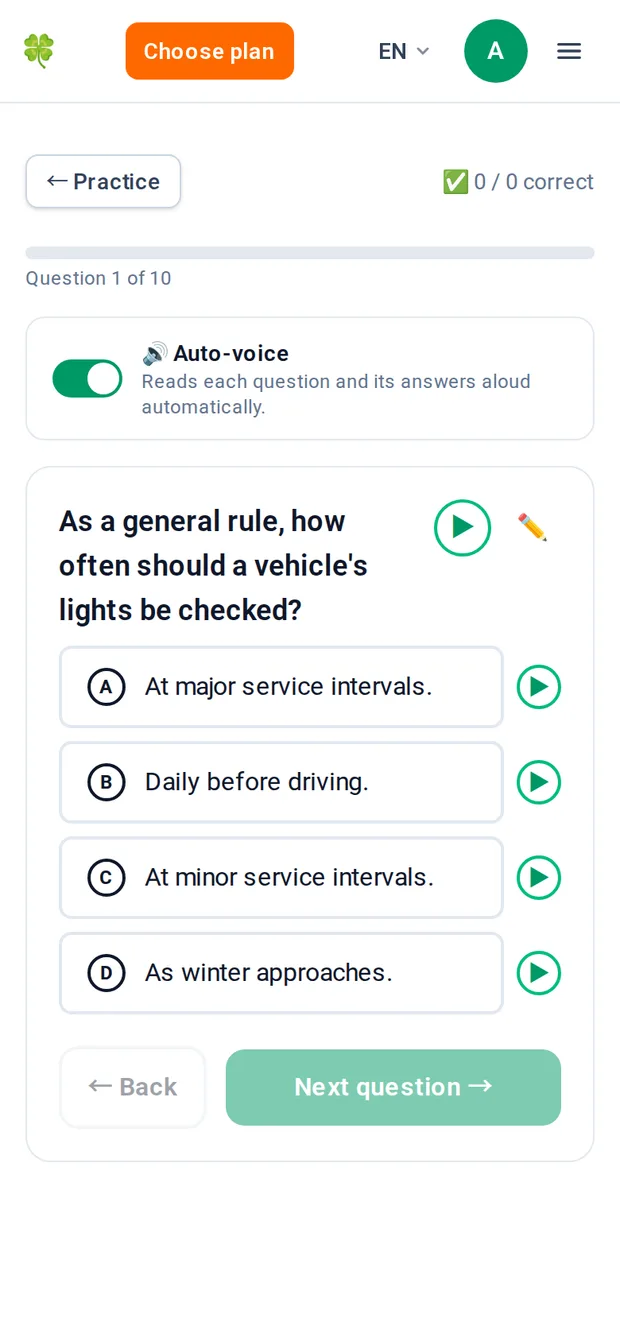
Find the switch
Look above the question card in Practice or in a Learning-module mini-test.
Turn Auto-voice on
The switch stays on for that browser or device until you turn it off, in every mode.
Answer as it reads
The site reads the question, then each answer option with its letter. After you answer it says "Correct" or "Incorrect" and reads the explanation.
If nothing plays
Some phone browsers block sound that the page did not start from a tap. If that happens, a "Tap to listen" button appears next to the switch; tap it once.
Get more from voiceover and auto-voice
Use headphones so you can hear every word clearly, especially in a busy room or on a bus.
Listen to the explanation after you answer, not just the question. That is where the reasoning sticks.
Keep an eye on the English wording too. The official theory test shows the questions in English, so it pays to recognise the key terms in both languages.
Audio lessons (Pro): listen topic by topic
Audio lessons is a new page, also reachable from a card on your dashboard. Every question is read as the question, then the correct answer, then the explanation. The answer letter is not read out, because at the test centre the order of the answers is shuffled.
Only questions without a picture are in the lessons, because you need to see a picture to answer those. That is 583 questions — in English about 4 hours 20 minutes of listening (the running time differs a little from language to language).
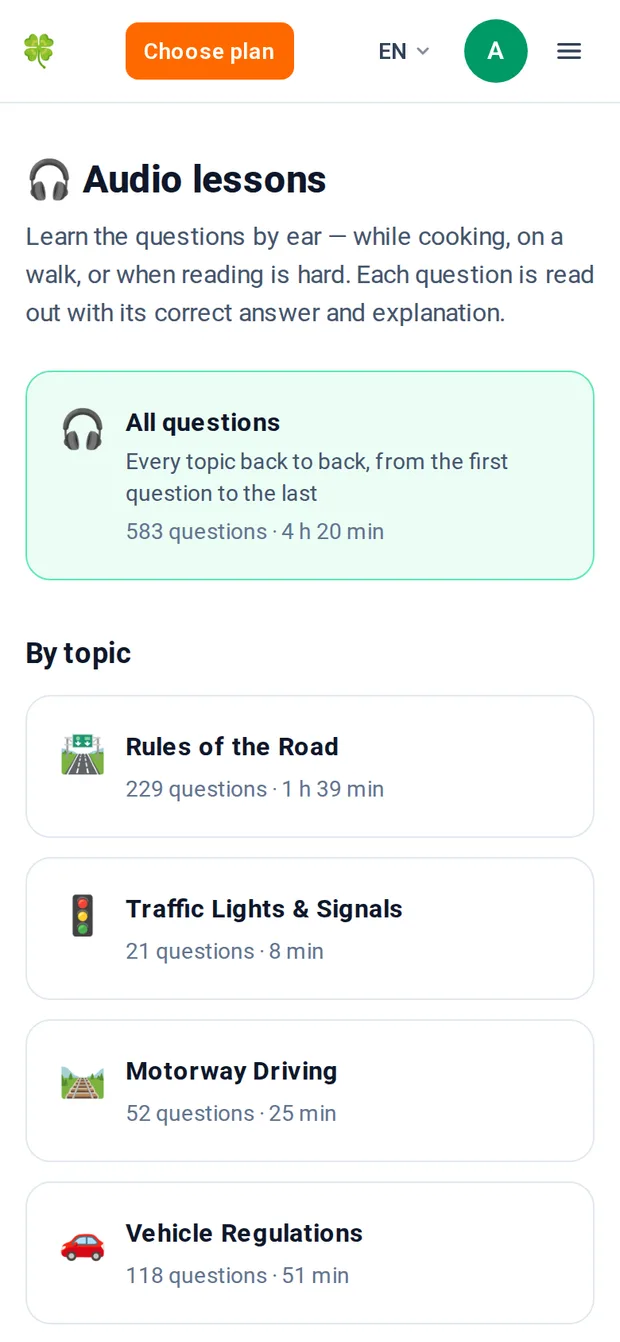
Open Audio lessons
Follow this link to Audio lessons, or tap the Audio lessons card on your dashboard.
Pick a lesson
There is one lesson per topic: Rules of the Road, Traffic Lights & Signals, Motorway Driving, Vehicle Regulations, Safety & Hazards, Pedestrians & Cyclists, and Legal & Penalties. There is also one big "All questions" lesson that plays every topic back to back.
Check the card
Each card shows the number of questions and the running time, for example Rules of the Road: 229 questions.
Tap the lesson and press play
The player opens on the first chapter. Lessons are split into chapters of roughly 20 minutes — about one drive — and the player shows "Question X of Y" and "Chapter X of Y" with the time left in the chapter.
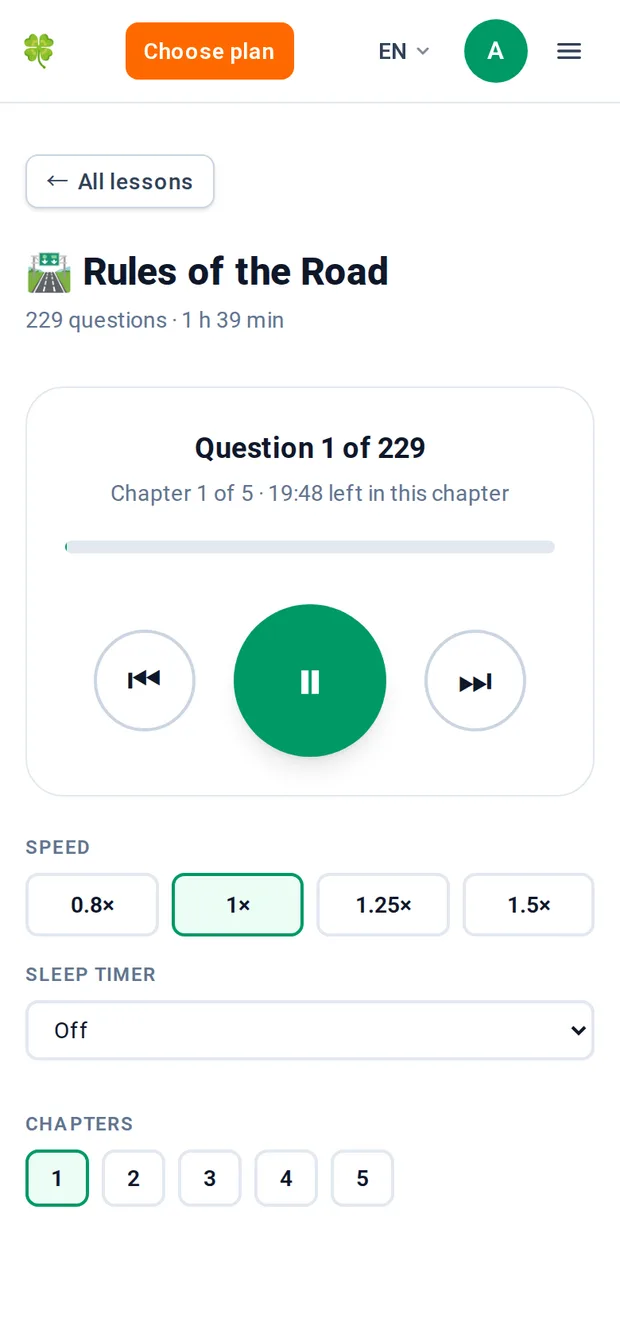
Player controls
Use the previous/next question buttons to move through the lesson, and play/pause to stop and start.
Change the speed to 0.8×, 1×, 1.25× or 1.5× to suit your listening pace.
Set a sleep timer for 15, 30, 45 or 60 minutes, or end of chapter, so it stops by itself.
Jump to any chapter with the chapter buttons. A chapter plays as one continuous track, so it keeps playing with the phone screen locked.
The site remembers where you stopped. The lesson card then shows "Continue from chapter X of Y". Progress is kept separately for each language.
Never study from the screen while driving
Audio lessons are for listening while cooking, walking or as a passenger. Never look at the screen or interact with the site while you are driving. Set up the lesson before you set off and let it play.
Also fixed: Smart practice session length
Smart practice (Pro) now always gives exactly the session length you pick: 10, 20 or 30 questions. Before, it sometimes served fewer. Your session now matches what you asked for.
| Feature | Free | Pro |
|---|---|---|
| 14 site languages: interface, 851 questions, explanations | Included | Included |
| Voiceover buttons (question, answers, explanation) | Shown locked | Included |
| Auto-voice | — | Included |
| Audio lessons | — | Included |
| Smart practice (10, 20 or 30 questions) | — | Included |
Practise with sound
Open practice, switch the site to your language and turn on Auto-voice to hear every question read aloud.
Open practice